Change Tracking Assisted Setup (License Registration)
The Change Tracking Wizard includes an Assisted Setup that walks through the initial process needed to register the product and generate a License Key.
To access the assisted setup, search Assisted Setup and select the page.
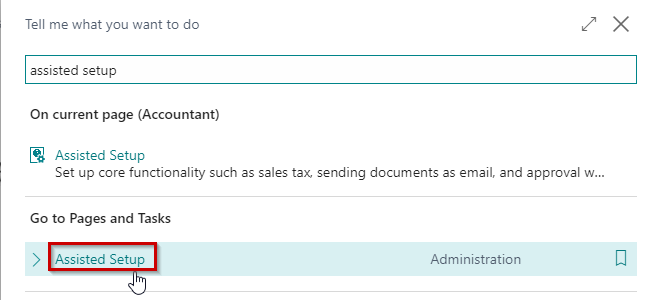
Select the record titled Set up Change Tracking.

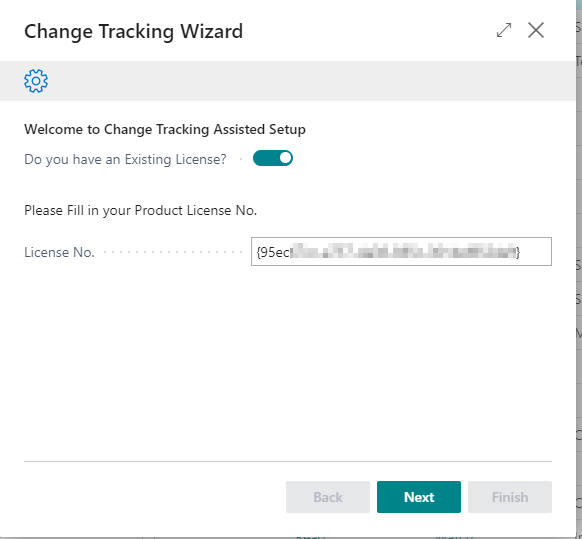
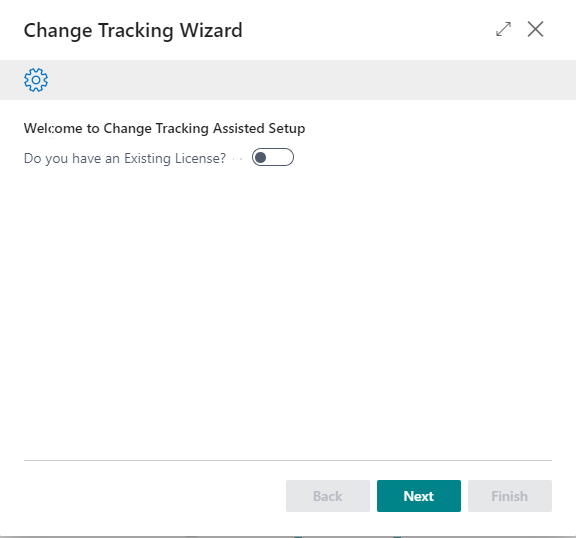
You will be asked if you have an Existing License.
a. If you do, your window will likely look like this with this field toggled on. Click Next. If you know your License No. but it is not pre-populated, enter it here.
b. If you do not have an Existing License, leave this field toggled off and click Next.
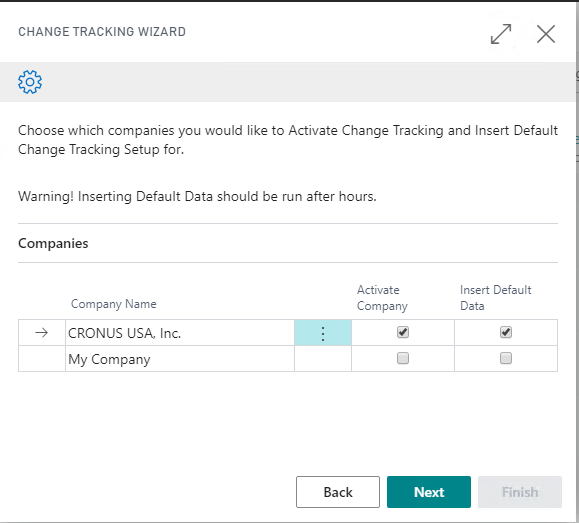
Click the Activate Company and Insert Default Data checkboxes next to the companies for which you wish to activate Change Tracking .Setup.
Note
Insert Default Data will activate the commonly tracked tables and create the starting records against which changes will be tracked. This is best run after hours when no one is in the system as it could cause locking issues and take some time depending on how many records exist in that company. Your current company will be displayed first. Companies that have already been activated or have already had Default Data inserted will not be able to be selected.
Completely fill out the Contact Information (be sure to scroll down to see all fields!) and click Finish.
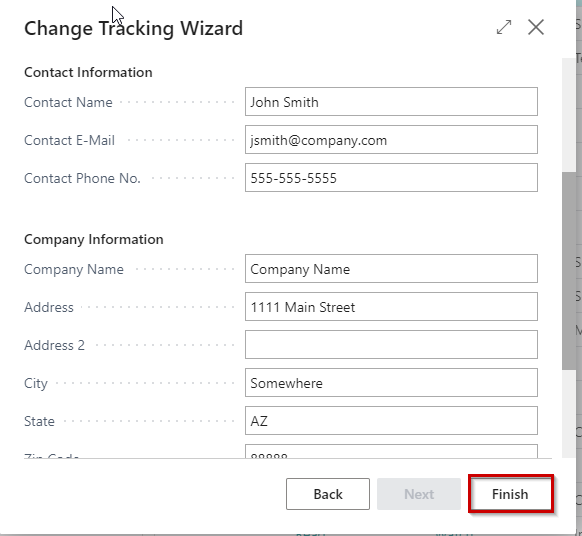
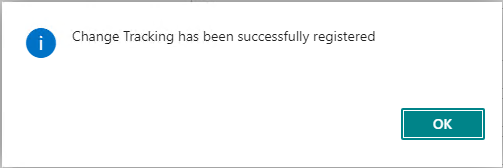
A registration call is then made to create/update the Change Tracking License. If the registration is successful, a message will indicate the registration has been completed.